Features
- Beatmap
- Select or drag and drop a
.osufile. - Start Point / End Point
- Enter the time, Slider Velocity, and Volume for the edit range.
- Include Start Time / Include End Time
- Choose whether timing points exactly on the range edges are included.
- Overwrite
- Removes all inherited timing points in the selected range, then creates new inherited timing points. In normal Overwrite, points that would not change SV, Volume, or effects are skipped.
- Modify
- Modifies existing inherited timing points in the selected range.
- Remove
- Removes inherited timing points in the selected range.
- Keep
- Keeps the original inherited Velocity or Volume instead of applying the input value.
- Dense Mode
- Creates dense inherited timing points at
1/16 snap,1/8 snap, or1/4 snap. Dense Mode still places timing points even when the values do not change. - -1/16 Offset Mode
- Places generated SV points slightly before the target object. When 1/12 snap notes are present, nearby notes also use a
-1/12 offset. This mode is recommended when placing SV points with volume changes. - SV Mode
- Selects how Velocity and Volume move from the start value to the end value.
- Finisher Only Mode
- Limits Overwrite and Modify to big-note/Finisher SV points. In Overwrite, when a Finisher changes SV or Volume, a restore point is placed at the next non-Finisher hit object or barline in the selected range. Consecutive Finishers are kept as one run, and this mode cannot be used together with Dense Mode.
- Backup
- When enabled, the app creates a backup folder in the local app folder and saves the original
.osufile before applying changes. Use the Open Backup Folder button to view the backups. To restore a file, open the dated.osubackup file and copy its contents back into the original beatmap file. - Language / Manual
- The app can switch between English and Japanese, remembers the last language, and opens this manual from the title bar.
Advanced Mode
Advanced Mode adds profile controls. A profile saves the current input values and options so the same SV setup can be reused later.
- Save: saves the current values into a named profile.
- Load: restores a saved profile.
- Delete: removes a saved profile.
- Profiles include the edit values, range options, Dense Mode snap, Offset Mode, Finisher Only Mode, SV Mode, Keep settings, and Backup setting.
Changes Added in plus
- Fixed a bug where
ModifyandDeletecould turn red lines into green lines. Overwritenow works as a true overwrite. It removes all green lines in the selected range before creating new green lines.- Normal Overwrite now also creates SV lines on barlines. Barline positions are calculated from red lines using
beatLength * meter, and the final timestamp is floored. - Dense Mode now supports
1/8 snapand1/4 snapin addition to1/16 snap. -1/16 Offset Modenow includes the old 1/12 included behavior by default. When 1/12 snap notes are present, nearby notes also receive a-1/12 offset.- The 1/12 included behavior now also supports notes within
±1 msof 1/12 snap. - Removed the Kiai option. Overwrite inherits Kiai/effects from the start point, and Modify preserves each green line's original effects.
- Added small
Keepcheckboxes to preserve SV and volume independently. - Volume input is now limited to values from
5to100. - Added
Finisher Only Mode. Overwrite and Modify can target only big-note / Finisher SV lines, and Overwrite adds a restore SV line after the changed Finisher. - In Finisher Only Mode, green lines are not added when SV, volume, and effects do not change.
- Added the
SV Modedropdown. The default behavior isLinear / Arithmetic, and the old Exponential checkbox behavior is available asCubic In / Accelerate Curve. Fixed-control-point Bezier modes,Bezier In-OutandBezier Out-In, were also added. - When the selected range crosses BPM changes, generated SV values are now automatically BPM-compensated in all SV modes.
- Added English and Japanese UI support, and the selected language is preserved for the next launch.
- Added a manual link to the top of the app.
- The app checks GitHub Releases at most once every 24 hours and shows a notice when a newer version is available.
SV Mode Formulas
Let the progress value be:
Also let s be the start value and e be the end value. The normal domain is:
All modes interpolate from s to e. If the start and end values are the same, the value stays constant for the whole range, including the Bezier modes. The Bezier modes use fixed control points; they cannot be edited in the app.
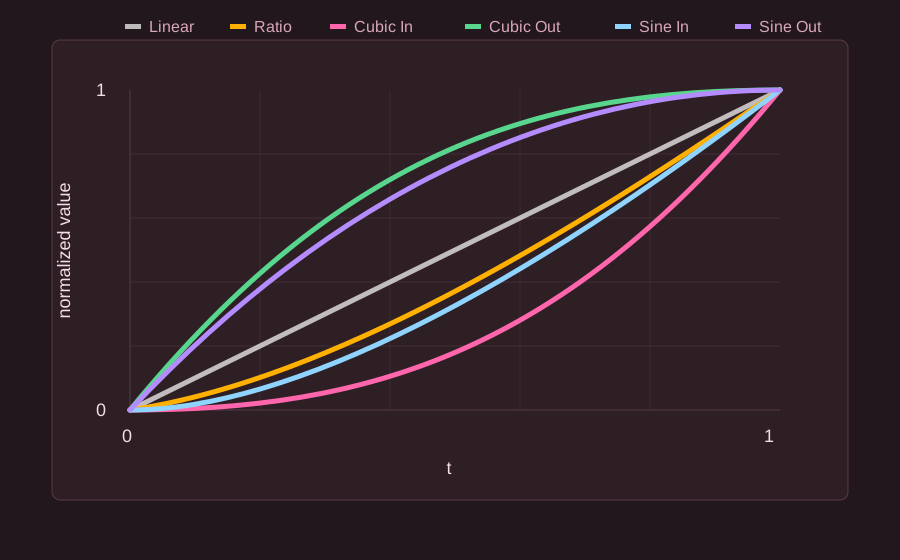
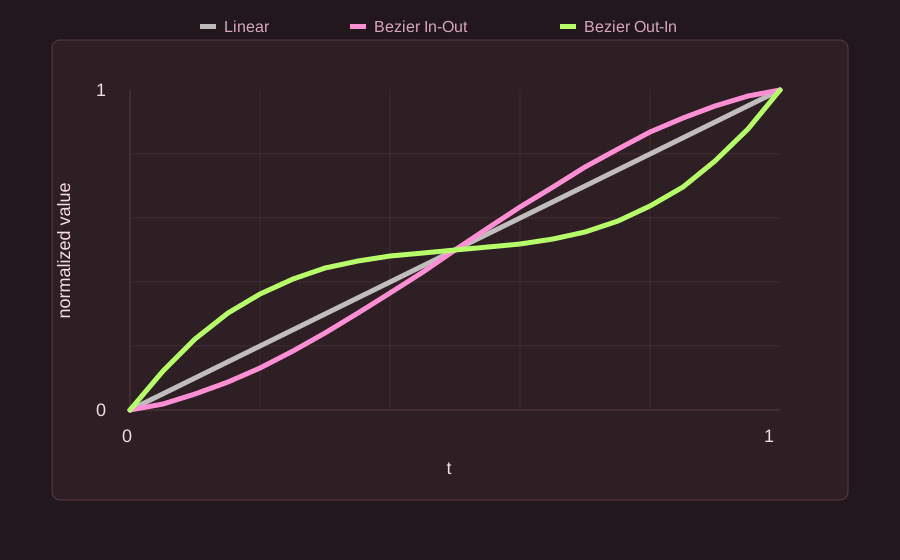
| Mode | Formula | Shape |
|---|---|---|
| Linear | Constant difference over time. | |
| Ratio | Constant ratio over time. | |
| Cubic In / Accelerate Curve | Slow at the beginning, faster near the end. | |
| Cubic Out / Decelerate Curve | Fast at the beginning, slower near the end. | |
| Sine In / Smooth Accelerate Curve | Smooth acceleration. | |
| Sine Out / Smooth Decelerate Curve | Smooth deceleration. | |
| Bezier In-Out / Accelerate-Decelerate Curve | Fixed Bezier curve with control values 0.10 and 0.90. Slow at both ends and faster near the middle. |
|
| Bezier Out-In / Decelerate-Accelerate Curve | Fixed Bezier curve with control values 0.90 and 0.10. Fast at both ends and flatter near the middle. |
When the selected range crosses BPM changes, generated SV values are automatically BPM-compensated. This applies to all SV modes. The app uses the start BPM as the reference:
For Slider Velocity, the inherited timing point beat length is:
For Volume, the value is rounded to the nearest integer.