User Guide

osu!taiko Mapping Helper User Guide

Japanese GitHub Discord

Mapping Workflow Tool

osu!taiko Mapping Helper

A helper tool that turns small but time-consuming mapping tasks into quick, repeatable operations.

Download Discord
Windows osu!stable Japanese / English

Main Features

Four workflows, one tool

The tool reads the beatmap currently opened in the osu! editor and helps with repetitive editing and value-checking tasks.

01

SV Editor

Set SV and Volume using notes, barlines, BookMarks, BeatSnaps, existing green lines, and other targets.

Create gradients across a range, process specific object types, apply Relative Mode, and organize existing green lines.

SV Editor window

02

Utility

Run non-SV edits for Offset, Hitsound, note positions, Metadata, and other beatmap settings.

It also supports tag editing across all difficulties, settings copying, and resnapping notes to a selected beat snap.

Utility window

03

Timing Property

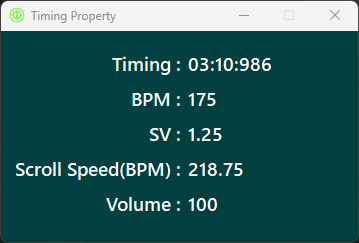
Check the Timing, BPM, SV, Volume, and Scroll Speed (BPM) applied at the current osu! editor position in real time.

Timing Property window

04

BG Setter

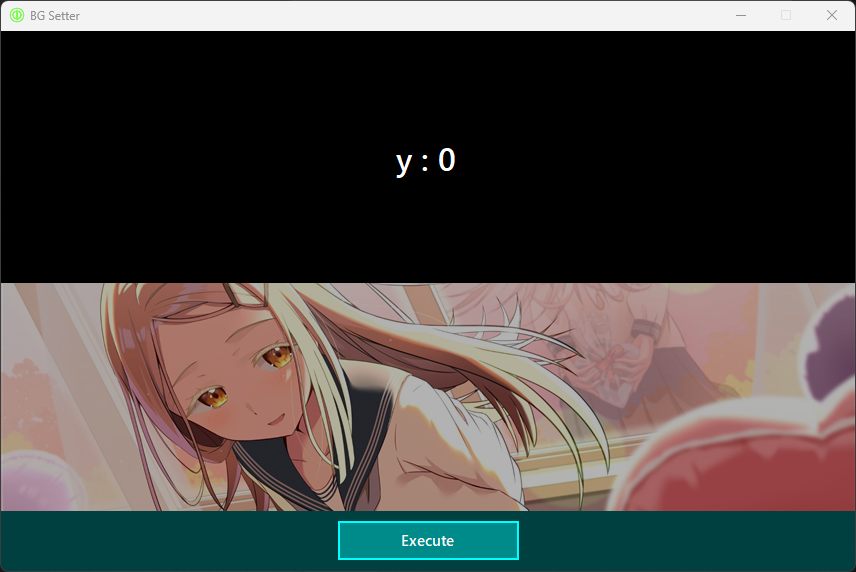
Move the background image on screen and choose the BG Y coordinate saved to the beatmap.

Adjust the position visually instead of repeatedly entering numeric values.

BG Setter window

Get Started

Download the latest version

Open the target taiko beatmap in osu!stable, then launch the tool to get started.

Open Releases

Overview

What this tool does

osu!taiko Mapping Helper reads the taiko beatmap currently opened in the osu! editor and helps with SV editing and batch editing. The target is either the currently selected .osu file, or all difficulties in the same song folder depending on the feature.

Reads the current beatmap

The tool reads the running osu! process, the opened song folder, the .osu file name, playback position, metadata, and background image information. If the beatmap name appears in the tool, it has detected the target beatmap.

Edits .osu files directly

SV Editor, Utility, and BG Setter rewrite .osu files. After running a process, press Ctrl + L in the osu! editor to reload the file.

Main features

The tool can apply or delete SV lines, normalize hitsounds, change note coordinates, edit tags, copy settings, resnap notes, adjust background Y position, and manage backup retention.

Reference information

Timing Property shows the Timing, BPM, SV, Volume, and Scroll Speed (BPM) at the current osu! playback position. It is useful for checking values while building SV effects.

Basic workflow

The common flow is: open the target beatmap in osu!, enter conditions in the tool, execute the process, and then press Ctrl + L in osu!.
A success message means the file was written, but the osu! editor view is not refreshed until you reload it.

Start

Setup and basic use

This section covers the shared flow from launch to checking the result.

Requirements

  • Windows
  • osu! stable

Download

  1. Open miyagish1m4/osutaiko-mapping-helper from the GitHub button in the upper-right corner.
  2. Open Releases on the right side of the GitHub page.
  3. Click the release with the latest numeric Tag.
  4. Download osu.taiko.Mapping.Helper.zip.
  5. Source code is not needed to run the app.
  6. Extract the zip file and run osu!taiko Mapping Helper.exe.

Launch

  1. Start osu! and open the taiko beatmap you want to edit.
  2. Start osu!taiko Mapping Helper.exe.
  3. Check that the beatmap name and background information in the tool are updated.
  4. Choose SV Editor, Utility, or BG Setter from the menu.
  5. Enter the conditions and press Execute.
  6. When the success message appears, press Ctrl + L in osu!.

SV Editor

Apply and delete SV lines

The explanation follows the GUI order: Timing, SV, Volume, target options, and Execute.

1. Timing

Set the start and end of the processing range.
Inputs accept mm:ss:fff format or an integer millisecond value. For example, 01:23:456 and 83456 are both valid.

Set Start Timing and Set End Timing copy the current osu! playback position into the start or end field.

The ⇔ button swaps start and end. Execution fails if the start timing is later than the end timing.

2. SV

When the SV checkbox is enabled, you can specify the SV value to add or update.
Enter a number greater than 0. Decimal values are allowed.
If the SV checkbox is disabled, the tool refers to the green line immediately before the processing point and does not explicitly change the SV value.

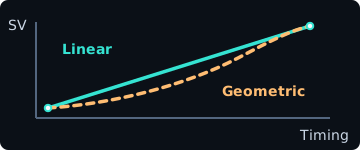
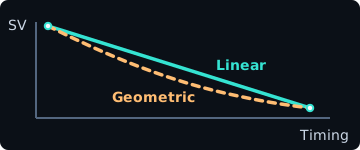
Linear mode changes the value by a constant difference from start to end.
Geometric mode changes the value by ratio.

Linear mode SV(t) = SV_start + (SV_end - SV_start) * p
Geometric mode SV(t) = SV_start * (SV_end / SV_start) ^ p

p is the progress inside the range. It is 0 at the start and 1 at the end.


Linear and geometric SV change when the end SV is higher than the start SV
When the end SV is higher
Linear and geometric SV change when the end SV is lower than the start SV
When the end SV is lower

3. Volume

When the Volume checkbox is enabled, you can specify the volume of the green lines.
Enter an integer from 5 to 100. Decimal values are not accepted.
If the Volume checkbox is disabled, the tool refers to the volume of the red or green line immediately before the processing point. Disable Volume when you want to edit only SV without changing volume.

When Apply to Red Lines is enabled, red lines inside the selected range are also changed to the specified Volume.
Use this to prevent red lines and green lines at the same timing from ending up with different Volume values.

When this checkbox is disabled, red-line Volume values inside the range are left unchanged.
This is useful when you intentionally want the first red line and its green line to have different Volume values, so the area before that line uses the red-line Volume and the area after it uses the green-line Volume.

4. Apply Start Timing

If disabled, an object exactly at the start timing is excluded from processing.

5. Apply End Timing

If disabled, an object exactly at the end timing is excluded from processing.

6. Relative Mode

This option appears when AdvanceMode is enabled in Settings.
Normally, the entered SV is used as-is. In Relative Mode, the new SV is calculated based on the SV currently applied to the target object.

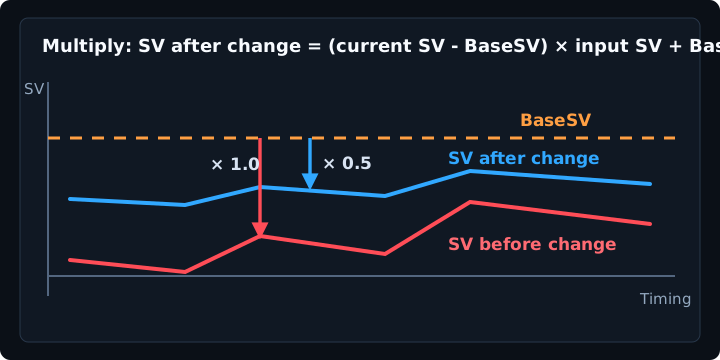
Multiply uses (current SV - BaseSV) * input SV + BaseSV.
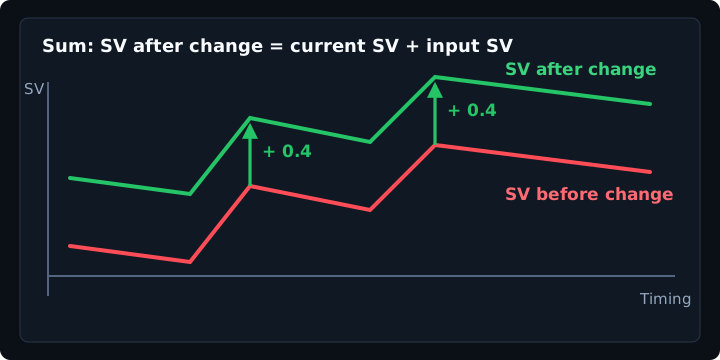
Sum adds the input SV to the current SV.

Add mode image: input SV is added to the SV before processing
Multiply mode image: distance from BaseSV is changed by ratio

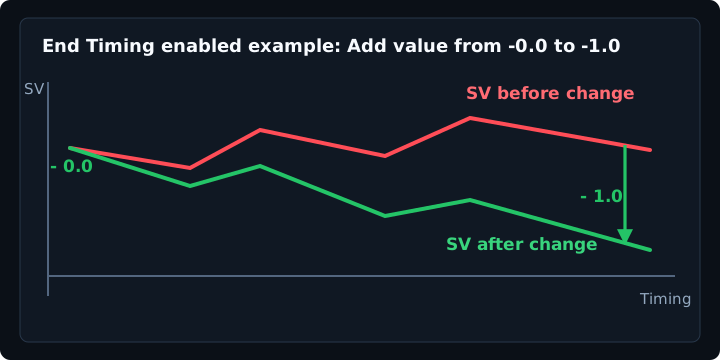
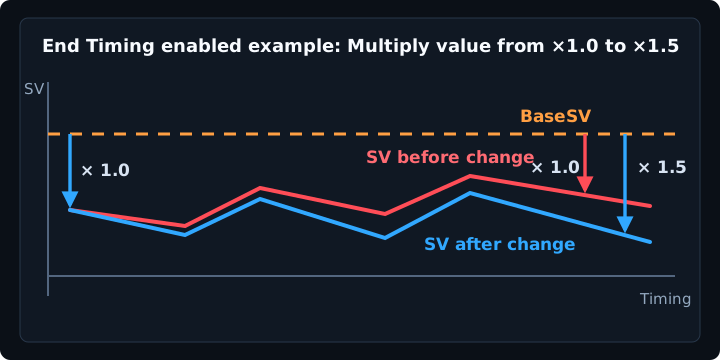
Enable End Timing lets you specify separate relative values for the start and end of the range.

Add value changes from -0.0 at the start to -1.0 at the end
Multiply value changes from 1.0 at the start to 1.5 at the end

7. Apply tab

Adds green lines to target timings inside the selected range.
If SV or Volume is enabled, values are calculated according to the position between start and end.

When existing green lines overlap, the tool organizes existing green lines according to the target and offset.

Green lines between the target note and the next target note may be removed if they would duplicate the new line's effect. However, lines required to restore unselected objects, or to preserve kiai changes, are kept or have their values inherited.

After applying, sliderLength is corrected if needed so that sliders before or after the range do not visually break.

kiai state is inherited from the previous red or green line.

8. Delete tab

Deletes green lines inside the selected range. Red lines are not deleted.

After deletion, sliderLength is corrected if needed so that sliders before or after the range do not visually break.

9. Offset

When enabled, green lines placed by Only Objects are shifted slightly before the target note.

If the Settings offset type is...
1/16 (1/12) offset, the offset is calculated from BPM as a 1/16 note.
If the type is ms offset, the configured millisecond value is used.

When 1/12 inclusive is enabled, 1/12 offset is used if the range includes 1/12 snap HitObjects, so the SV line does not become too close to the previous HitObject. Otherwise, 1/16 is used.

This option is recommended when placing SV lines with Volume changes, because it helps prevent the player from hitting before the volume change is applied.

10. Target selection

Only ObjectsAdds green lines based on HitObjects, barlines, BookMarks, or specific objects. This is the basic mode.
BeatSnapsAdds green lines at the specified beat snap divisor, regardless of whether HitObject are present.
Use this when you want to place a volume gradient where there are no notes.
*Offset will not be applied.
Green LinesThis option appears when AdvanceMode is enabled in Settings.
Modifies the SV and Volume value of already placed green lines.
*Offset will not be applied.
Red LinesThis option appears when AdvanceMode is enabled in Settings.
Adds green lines on the existing red line to match the set Scroll Speed Setting (BPM).
This is useful when you want to unify the visual scrolling speed in songs where the BPM changes frequently.
*Offset will not be applied.

Only Objects details

All ObjectsTargets all Objects: notes, sliders, spinners, barlines, and BookMarks within the selected range, and places green lines on them.
On BarlinesTargets barlines. Both empty barlines and barlines with notes are processed.
The tool also places restore lines on the next Object after each barline, so the SV does not unintentionally continue into the next section.
Except BarlinesTargets Objects that are not at the same timing as a barline.
Restore lines are also placed on barlines, so the SV does not unintentionally affect barlines.
On BookMarksTargets positions with the same timing as a BookMark. Both BookMarks without notes and BookMarks with notes are processed.
The tool also places restore lines on the next Object after each BookMark.
Except BookMarksTargets Objects without a BookMark.
Restore lines are also placed on BookMarks, so the SV does not unintentionally affect BookMark positions. Use this when you want to avoid only marked positions.
Specific objectsChoose from Normal Don, Normal Kat, Normal Slider, Finisher Don, Finisher Kat, Finisher Slider, and Spinner. Only matching objects are processed.
Existing green lines for unselected object types are basically left untouched.
In this mode, the tool places a green line immediately before or at the selected object, and also places a restore line on the next note so the SV does not remain in the next section.
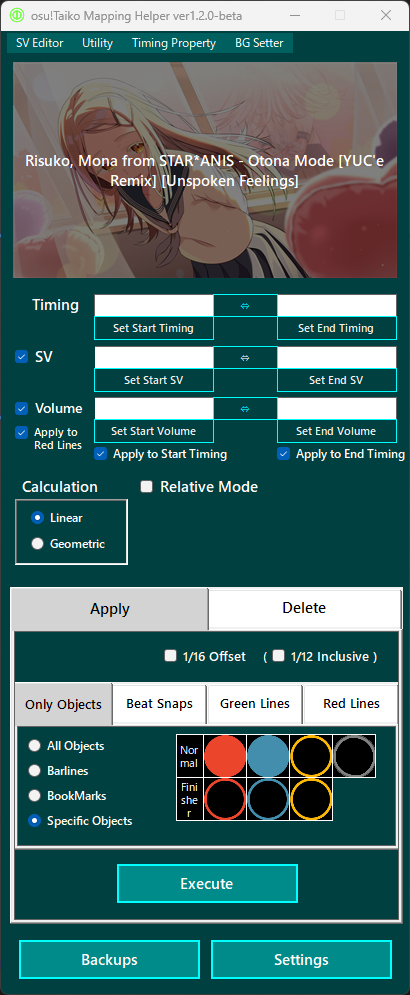
11. Execute button

Press Execute to overwrite the .osu file using the current inputs and target options.
A backup is created before execution, and a success message is shown when writing is complete. Finally, press Ctrl + L in osu! to reload.

Utility

Batch edits and helper features

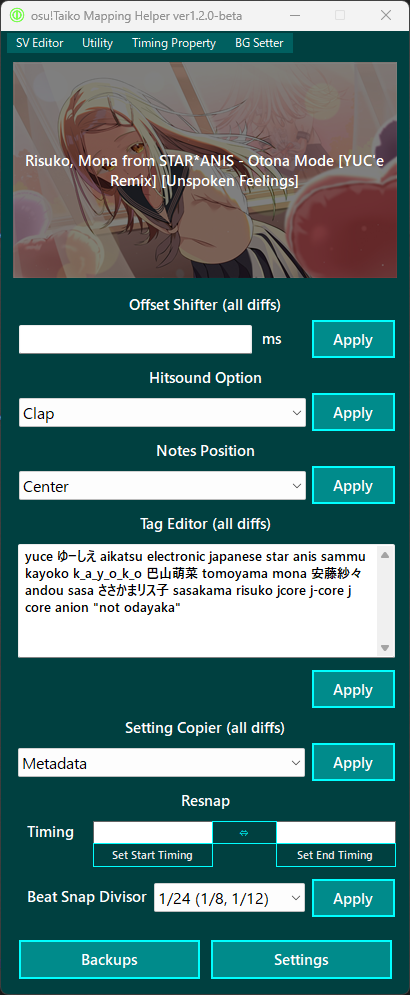
Utility is where non-SV batch editing features are grouped.

Offset Shifter (all diffs)Moves timing by the specified milliseconds for all .osu files in the same song folder.
PreviewTime, Bookmarks, TimingPoints, HitObjects, and animation event start times are moved.
Hitsound OptionUnifies Kat hitsounds in the current difficulty to Clap or Whistle.
Don notes are basically not changed. The selected hitsound is applied to Kat and big Kat.
Notes PositionRewrites note coordinates in the current difficulty.
Center uses X=256 / Y=192.
Separate uses the coordinates configured in Settings for Don, Kat, big Don, and big Kat.
Random assigns random coordinates per note. Slider control points are moved as well.
Tag Editor (all diffs)Applies the tag input to the Metadata of all difficulties in the same song folder.
Settings Copier (all diffs)Copies settings from the current difficulty to all difficulties.
You can choose Metadata, BG, Preview, and Timing Points.
Timing Points copies red lines and keeps each difficulty's existing green lines in the output.
ResnapMoves notes in the selected range of the current difficulty to the selected beat snap interval.
If you want to resnap all notes, leave the range fields blank.

Resnap behavior

For each red line, the tool calculates snap intervals from BPM, meter, and barLength.
Notes within half a snap before or after each snap position are moved to that snap position. If a red line exists inside the range, the next section is recalculated using the new BPM and meter.

Available intervals are 1/24, 1/36, 1/48, and 1/60. Choose the smallest unit that matches the beatmap's rhythm. A confirmation dialog appears before execution.

BG Setter

Adjust background Y position

Shows the current beatmap background and adjusts the Y coordinate stored in the osu! background event line.

What changes

BG Setter rewrites the Y offset in the background line of the Events section. It does not edit the image file itself. Use it when you only want to change the displayed background position.

How to use

  1. Open the target beatmap in the osu! editor.
  2. Open BG Setter from the menu.
  3. Drag the background up or down to adjust the Y coordinate.
  4. Save with Execute or Ctrl + S.
  5. Press Ctrl + L in osu! to check the result.

Timing Property

Check beatmap values at the current position

Timing Property is a reference screen, not an editing screen. It shows values corresponding to the current osu! playback position. It appears in the menu when AdvanceMode is enabled in Settings.

TimingShows the current osu! playback position in mm:ss:fff format.
BPMShows the BPM of the red line applied at the current position.
SVShows the SV applied at the current position.
Scroll Speed (BPM)Shows the visual scroll speed as a BPM-equivalent value based on BPM, SV, and SliderMultiplier.
VolumeShows the Volume applied at the current position.

How to use

When you play or seek in the osu! editor, Timing Property values update.
Double-clicking each displayed value will copy it to the clipboard.

Settings

Settings items

Settings controls the whole tool's display language, backup retention, offset type, and note coordinates.

LanguageSwitches between English / Japanese.
Backup LimitThe number of backup files kept per beatmap.
Enter an integer from 1 to 100. Older backups are deleted when saving if the limit is exceeded.
Offset TypeSwitches the SV Editor offset input between snap-based and millisecond-based.
Note PositionSets X / Y coordinates for Don, Kat, big Don, and big Kat when using Separate.
X must be from 0 to 512, and Y must be from 0 to 384.
Defaults are:
Don: X=64 / Y=64
Kat: X=448 / Y=64
Big Don: X=64 / Y=320
Big Kat: X=448 / Y=320
Unicode SupportUses TitleUnicode / ArtistUnicode for beatmap title display.
This allows Japanese or special-character titles to be displayed.
AdvanceModeShows additional editing items such as Relative Mode and Timing Property.

Safety

Backup and cautions

This tool is convenient, but it rewrites .osu files during execution. It is safer to understand what changes before and after processing.

Automatic backups

SV Editor, parts of Utility, and BG Setter copy the current .osu file to the Backup folder before overwriting.
Backup file names include the date and time. Old backups over the configured keep limit are deleted.

Manual backups are recommended

Large SV operations, copying to all difficulties, and Resnap can affect a wide range of the beatmap.
For published beatmaps or active worksets, copy the whole song folder somewhere else before testing.

Disclaimer

Use this tool at your own risk. You are responsible for any issues that occur from using this tool or in connection with it.
The creators and distributors accept no responsibility or liability.

Check after execution

A success message means writing to the file is complete. The osu! editor view is not updated automatically.
Always reload with Ctrl + L and check Timing, HitObjects, and background coordinates.

Troubleshooting

When something does not work

Common symptoms and things to check.

The beatmap name or background does not appear

Check that osu! is running and that a beatmap is open in the editor.
Detection can also fail if the song folder or .osu file was moved or deleted.

I cannot see the changes after execution

Press Ctrl + L in osu! to reload the beatmap.
Even if the tool rewrites the file, the editor view is not refreshed automatically.

Timing input causes an error

Enter the value in mm:ss:fff format or as an integer millisecond value.
An error also occurs if the start timing is later than the end timing.

SV or Volume causes an error

SV must be a positive number. Volume should be an integer from 5 to 100.
The BaseSV for Relative Mode must also be a positive value.

I want to reduce backup files

Change the backup keep limit in Settings and save it.
You can specify a value from 1 to 100, and old backups are cleaned up after saving.

I cannot use the tool with osu!lazer

osu!lazer is not supported.
The tool cannot read the currently opened beatmap or playback position from osu!lazer in real time.
In addition, osu!stable and osu!lazer use different osu! file formats, so writing to an osu!lazer .osu file may cause unexpected behavior.
Use this tool with osu!stable only.

I want to report a bug

If you encounter a bug in the tool, please report it in the bug-report channel on Discord.

I want to request a new feature

If you have a request for a new feature or improvement, please post it in the request channel on Discord.

Project Members

Project Members

People who contributed to development, feature ideas, guide writing, review, and testing for osu!taiko Mapping Helper.

Programming miyagishima
uone (common function)
Feature Ideas tasuke912
Everyone who shares suggestions
User Guide Writing Vanity8
Proof Reading Maimaing
Testing miyagishima (basic checks only)
Everyone who uses the tool